If you want to skip the yapping and just want to see the final product, click here!
Back then, I did not know that the OLED display of Odin75 is programmable. I recently learned about the existence of QMK firmware and was happy that my keyboard uses that firmware. You can check the Github repository of QMK here. Basically, I can customize my keyboard firmware, including what is shown on the OLED display.
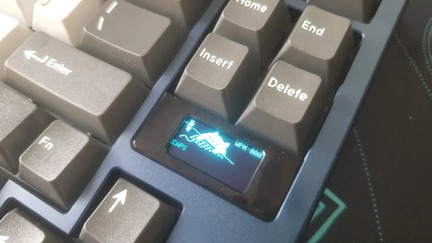
Above, that is the default display of Odin75. Bongo Cat animation with Words Per Minute (WPM) and Caps Lock status. I wanted to change it to something more personal. These are the things that I wanted to show on the OLED display:
- Instead of Bongo Cat, I want to see an animation if I pressed a key.
- Show the last key pressed.
- Show the total number of keys pressed since the last reset.
- Show session time.
- A way to reset the data above, like starting a new session.
Change the Bongo Cat!
As much as everyone love cats, I am getting tired of seeing the same animation, a change would be nice. After grueling hours of creating the perfect frames, below is what I manage to create:
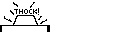
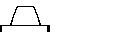
These images are only 128x32, OLED display has 128x64. The other remaining pixels can be used for texts (which will come later this post).
Now that we have the images, it is time to build the code. Upon checking the Github repository of QMK, under the Odin75 directory, I found a file named bongocat.c. Obviously, this is the file responsible in displaying the Bongo Cat animation. The gist of the render_bongocat is it renders the appropriate frame depending on the WPM (provided by a QMK function get_current_wpm()).
As for me, I don't need the get_current_wpm(). I need a function that executes when a key is pressed. While searching the QMK codebase, I found process_record_user(). Click here to know more about the function. Below is a not-so-complete code of displaying our custom animation based on key press state.
1Loading...As of writing, the guide to convert an image to OLED display in bongocat.c seems to be broken. A quick google search led me to javl.github.io/image2cpp. The website converts an image to a C array that can be used in QMK. As soon as I got the array, I just plugged that to Listing 1 line 1. You can add Listing 1 to odin75.c and it should work!
Show the last key pressed and total number of keys pressed
We can use the argument keycode in process_record_user(). It is equal to the key being pressed or released.
1Loading...Listing 2 is just added to the if-statement in Listing 1. On line 2, key_pressed is a global variable that I initialized somewhere in the code. This is my counter for the total number of keys pressed. Line 4 and 8 tells the firmware on what part of the display to write the text. oled_write() is a QMK function that writes text to the OLED display. When using oled_write(), you can fit 21 characters per line. The text that I will display has a total of 5 characters. Line 6 is for clearing the previous displayed text (5 empty spaces). Line 9 is for displaying the actual last key pressed. Line 7 and 8 is my magic for displaying the 5 characters in the most right part of the container (Kinda like text-align: right; in CSS). Line 12 to 16 is the code for displaying the total number of THOCKS or key pressed.
Show session time
To show the session time, I implemented the code inside oled_task_kb() function. Based from the code inside of that function, I believe this is called in an infinite loop somewhere. Since we want to show the updated session time all the time, I believe this is the best place to put it. Below is the code that I added.
1Loading...Regarding how we display the text, it is the same logic. Line 30 to Line 36 is to display the session time on the right most part of the OLED.
Reset the data
Since we are dealing with user input, then we need to modify process_record_user again. I configured that if I press the KC_PAUSE + r key codes. Below is the code that I added to reset the session time and total number of keys.
1Loading...How it looks!
Kinda slick if you ask me. I was thinking to add some notification feature but that would be too much, maybe in the future. If you want to see the full code, you can check my QMK fork here!